Setting up taxes for the outlet
important
The details provided by you, while setting up these sections on QRkey systems reflects/displays on the customer interface as well. Hence, it is important to ensure that these details are accurate, error-free and qualify for client exposure.
Click Tax from the entity settings menu options to start setting up tax categories on QRkey systems, applicable to customers using the outlet services.
Example
A restaurant under the current tax regime might only be required to collect SGST/CGST
Example
Assume a change in tax regime in which a new category of tax gets introduced and applies to restaurant businesses - the new tax category can then be created in this section and applied accordingly.
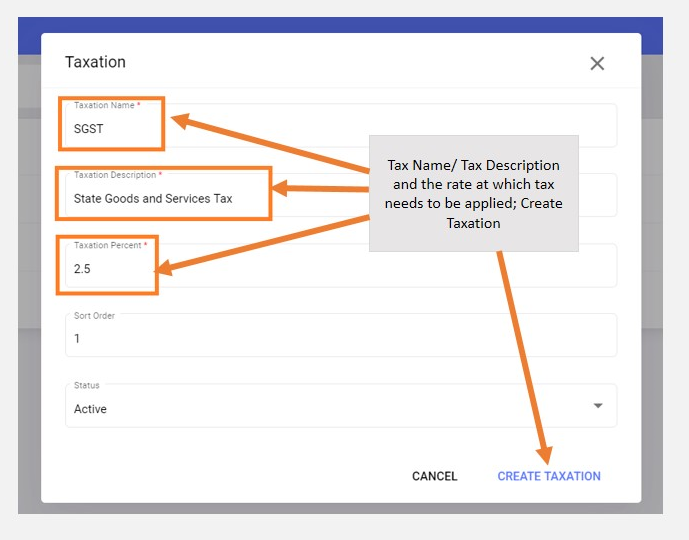
- Click the
+add button on your screen - Assign the correct TAX name to the TAX category you are creating. We suggest that you utilize commonly used tax abbreviations like SGST, CGST and GST etc. to make it easy and relatable for customers
- Fill in the percentage of tax to be applied in this tax category
- Assign a sort order number to this tax category. Sort orders decide the display sequence in which tax categories get displayed on the consumer interface. E.g. If the sort order assigned to
SGSTis 1, your guests seeSGSTlisted first on the consumer interface followed by any other tax category with sort order 2 - Mark this tax category as active and click
Create Taxation
note
Every item served by the outlet needs to have one or more tax category mapped to it. The system calculates and applies taxation activities according to this mapping, at the billing stage.