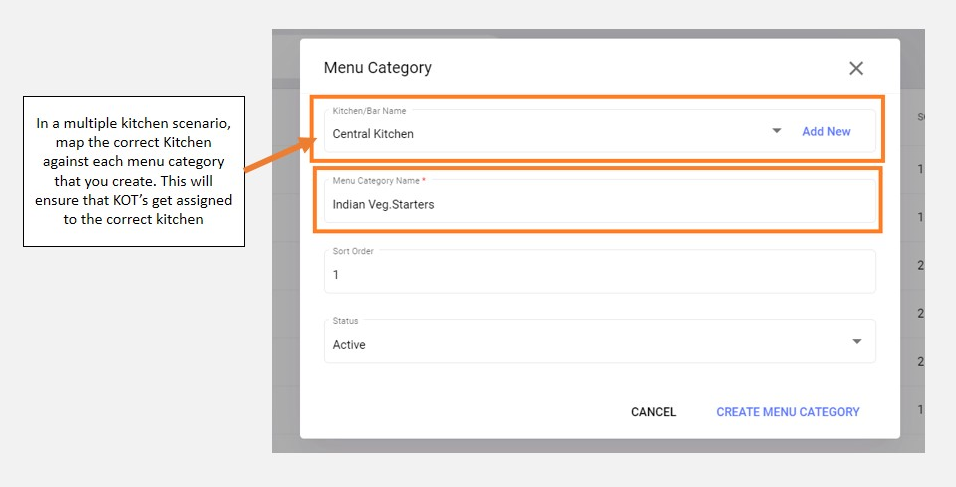
Setting up the menu categories for cuisines
important
The details provided by you, while setting up these sections on QRkey systems reflects/displays on the customer interface as well. Hence, it is important to ensure that these details are accurate, error-free and qualify for client exposure.
Click Menu Category from the entity settings menu options to start setting up the menu categories at the outlet, and integrated with the QRkey systems. Outlets may have various menu categories for different cuisines served at the restaurant depending on their type and size of operations.
Example
Multi-cuisine restaurant: The menu categories for an Indian cuisine could be Veg. starters and Non-veg. starters. Chicken Malai Tikka then, in turn, can be a menu item under the Non-veg Starters category.
Example
A single cuisine Italian speciality restaurants - The menu categories, in this case, could include classic Starters and speciality main courses followed by respective dishes under these categories.
- Click on the
+add button on your screen - Fill the name of the menu category as per of your choice suiting the essence of the cuisine for which you are creating this category.
note
Ensure all menu category names are unique. This will help in the smooth set-up and error-free operations of QRkey systems.
- Select the appropriate kitchen for this menu category from the kitchen selection drop-down. The correct kitchen selection in this segment will ensure that KOT’s related to this menu category are printed in this kitchen
- Assign a sort order number to this menu category. Sort orders decide the display sequence in which menu categories get displayed on the consumer interface. E.g. If the sort order assigned to
veg. starteris 1, your guests see veg. starters listed first on the consumer interface followed by any other menu category with sort order 2 - Mark the menu category as active and click
Create Menu Category