Setting up printers at the outlet
note
Printer Setup is important for printing the KOT/BOT and Bill.
Click Printer Setup from the entity settings menu option to start setting up the printers you would like to use for various purposes at the outlet, and integrated with the QRkey systems. Outlets may have one or more printers, depending on their type and size of the operations. Some outlets may have a separate kitchen (Kitchen Order Ticket - KOT), Bar (Bar Order Ticket - BOT) and Section (Billing) specific printers and others might use just one printer for all their kitchen/Bar and billing requirements.
QRkey systems are compatible with both these environments and setting printer(s) on QRkey systems will help you assign its specific functions in the steps to follow.
- Start by clicking the
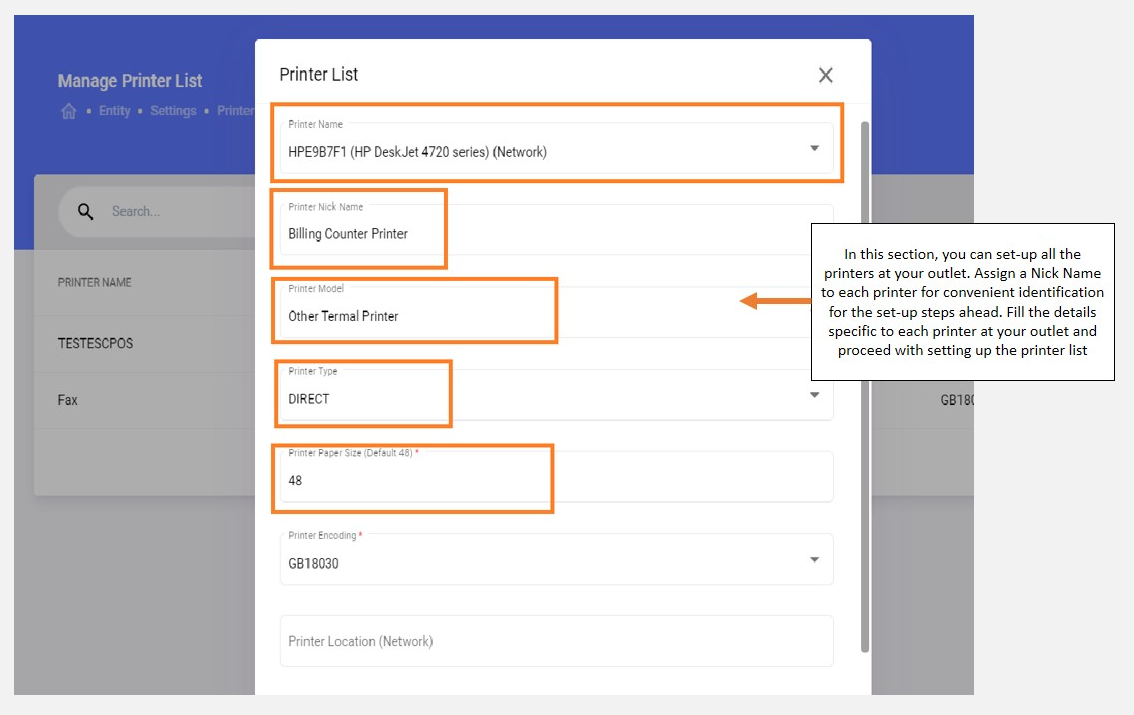
+add button on your screen - QRkey will auto-detect all the printers configured on your system and will list them in the printer name drop-down. Select the printer that you wish to start configuring
- Assign a nickname to the selected printer. E.g. say
HP Deskject4720is used at the billing counter for bill printing. The nickname you assign to this printer could be,HP Printer - Billing Counter - Select the applicable printer model from the drop-down list. In case your printer model is not listed, select
othersfor a regular printer type orOthers Thermalif the printer is a thermal printer - Specify the
Paper sizeused for this printer and provide thePrinter EncodingandPrinter Locationsdetails wherever available. Printer location is required only for printers that are on a network - Also provide the printer port if your printer is operating on a network
- Mark the printer configuration status as
Activeand proceed by clickingCreate printerA printer with the assigned nickname will get added to the configured printer list. To add more printers, repeat the process and ensure that all printers at your outlet get configured to the QRkey systems before you proceed further.
note
Printer Setup is important for printing the KOT/BOT and Bill.