Optimal Practice
Menu Setup
Some of the optimal practices to be kept in mind before setting up cuisines, menu categories, quantity customisation options and menu items on QRkey systems.
important
The details provided by you, while setting up these sections on QRkey systems reflects/displays on the customer interface as well. Hence, it is important to ensure that these details are accurate, error-free and qualify for client exposure.
Example
Cuisine names/Images uploaded here get displayed on the customer interface exactly the way they get set-up here.
- It is mandatory to upload Images against each cuisine. This ensures that the customer interface set-up and layout remains uniform.
- We advise uploading images for your recommended and high-selling dishes. The propensity of customers ordering dishes with images is higher than the ones without images. This also enhances the overall look and feel of the client interface
- The design of the customer interface best supports images uploaded on even number of dishes in each menu category (E.g. 2 or 4 images in each menu category)
- We advise that the number of images in each category should be restricted to 4. Having an image-heavy client interface increases the loading time, thereby hampering the overall experience
- Image size for both cuisine and menu items should mandatorily be 400*400 (Pixels)
- The customer interface creations follow a set-up hierarchy: Cuisine followed by Menu Category and then the menu items
An appropriate approach to cuisine, menu category and items
Example
Multi-Cuisine Restaurant: Cuisine can be Indian/Italian and south-Indian etc. Menu categories under Indian cuisine could be veg. starters and non-veg. starters. Chicken Malai Tikka will be a menu item under the non-veg starters menu category.
Example
A single cuisine speciality restaurants - Cuisine could be Italian classics, Pizzas and Pasta. The menu category in, this case, could include classic starters and speciality main courses followed by respective dishes in each category.
An inappropriate approach to cuisine, menu category and items
Cuisine: Starters and menu subcategory also as starters
Menu Category: Indian, South-Indian or Malwani
Section Setup
Some of the optimal practices to be kept in mind before setting up service sections, tables and covers on QRkey systems.
- It is mandatory to create service sections on QRkey systems according to the nature of operations and service channels offered at your outlet.
Example
Most outlets will be offering services through dine-In, home delivery and takeaway channels, while some might offer dine-in services only
- QRkey systems follow a hierarchy in which table covers are mapped to the tables at the outlet and tables, in turn, are mapped to specific service sections of the outlet. No element of the hierarchy can be eliminated/missed for the system to work smoothly
- It is mandatory to have at least one table mapped to each service category. E.g. At least one mapped table will be required for home delivery and takeaway service sections as well
- From QRkey systems perspective, service channels including home delivery and takeaway are considered as service section in the outlet
- You may have multiple dine-in sections at your outlet. Each section, however, should have minimum one table and each table, in turn, should have at least one cover mapped to them
Appropriate Approach
Example 1
Scenario
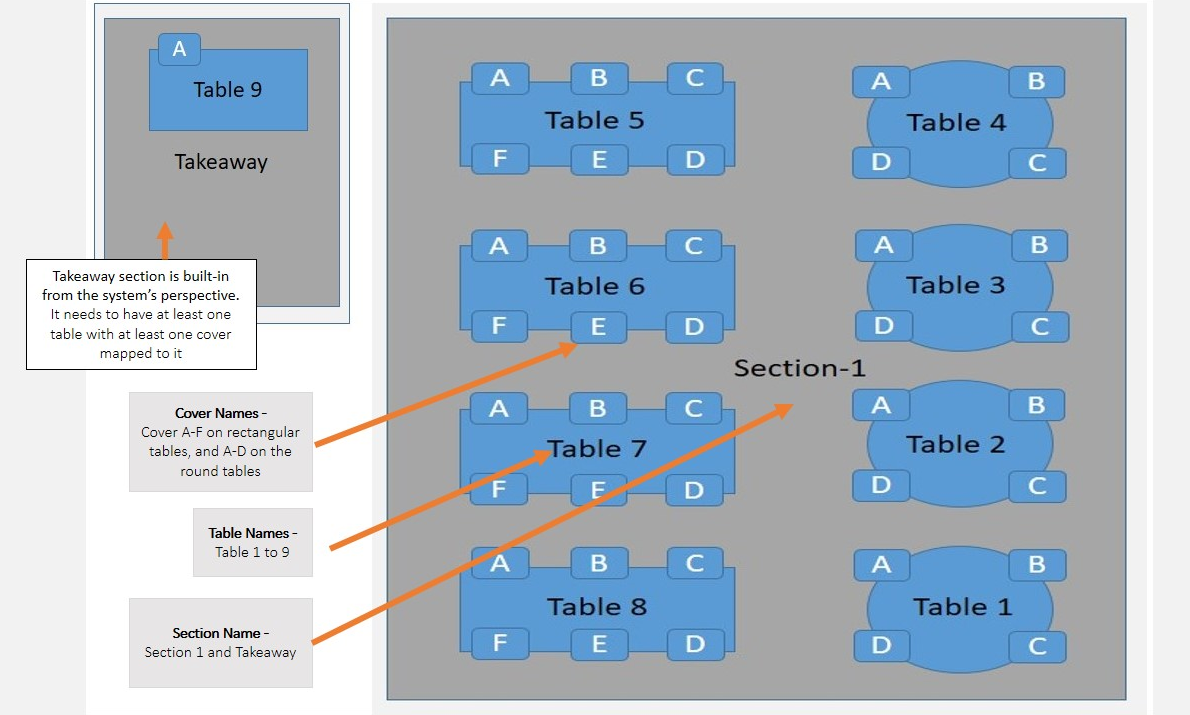
A restaurant has a single section dine-in operation with 8 tables. 4 out of these 8 tables have 6 covers each and the remaining have 4 covers each. This restaurant offers takeaway services to customers but does not service home delivery orders.
Setup explained
Creating Sections
In this scenario, the outlet is required to set-up 2 sections on QRkey. They could name the dine-in section Section 1 and takeaway as Takeaway respectively.
Creating Tables
After creating the required sections, the outlet can then move on to creating a total of 9 tables. They will be mapping tables 1-8 in section 1 and table 9 to takeaway.
Creating Covers
Once the tables get created, the outlet then can go on to creating 4 covers (A, B, C and D) each and map them against tables 1, 2, 3 and 4. For tables 5, 6, 7 and 8 they will have to create and map 6 covers to each table (A, B, C, D, E and F).
A single cover created and mapped to table 9 in the takeaway section just works fine.
The creation flow has been illustrated in the image below.
Example 2
Scenario
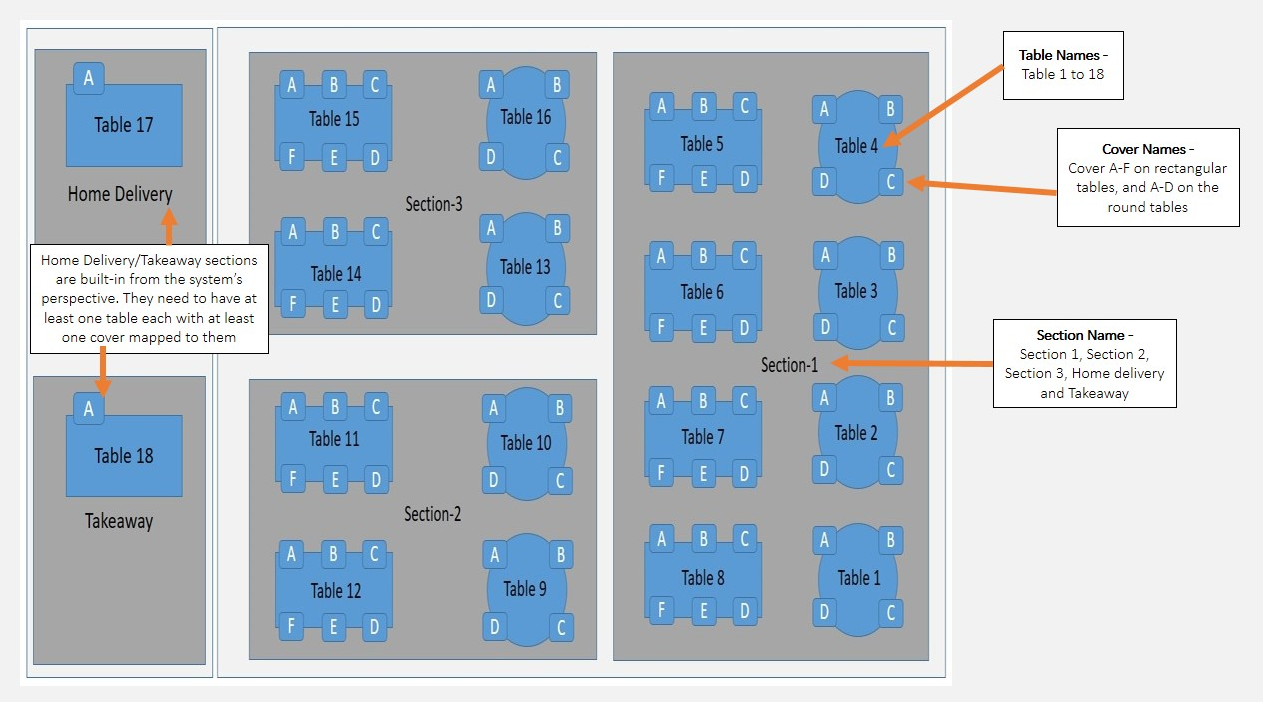
A multi-section restaurant has 3 section dine-in (Section 1, 2 and 3) operations. Section 1 has 8 tables, Section 2 has 4 tables and section 3 has 4 tables. 4 out of the 8 tables in section 1 have 6 covers each and the remaining have 4 covers each. 2 tables each in section 2 and section 3 have 6 covers and the remaining 2 tables in both these sections have 4 covers each. The restaurant also offers home delivery and takeaway services.
Setup explained
Creating Sections
In the given scenario, the outlet will be required to set-up 5 sections on QRkey. Names like Section 1, Section 2 and Section 3 could be used for dine-in sections respectively. For home delivery and takeaway section names like Home Delivery and Takeaway could be used.
Creating Tables
After creating the required sections, the outlet can then move on to creating a total of 18 tables. They will map tables 1-8 to section 1, tables 9-12 to section 2 and tables 13-16 to Section 3. Table 17 and table 18 then will be assigned to Takeaway and Home Delivery sections respectively.
Creating Covers
Once the tables get created, the outlet then can go on to creating 4 covers (A, B, C and D) each and map them against tables 1, 2, 3, 4, 9, 10, 13 and 16. For tables 5, 6, 7, 8, 11, 12, 14 and 15 you will have to create and map 6 covers to each table (A, B, C, D, E and F).
A single cover created and mapped to table 17 and 18 in the takeaway and the home delivery section just works fine.
The creation flow has been illustrated in the image below.